EZkeys 2 is more than piano software and a source of great sounds – it’s a songwriting tool designed to help you get ideas off the ground. Learn how you can find inspiration, add piano to your songs and stay in full creative control of every detail, every step of the way – from the first spark to the finished song.
The song in the video above starts as a guitar chord progression recorded to a click and dragged into Bandmate, which analyzes the recording and suggests piano parts that fit its rhythm and chords. From there, the arrangement comes together with a few more of the songwriting tools, including Show Similar Grooves for finding more parts in the same style, Replace MIDI for trying different performances over the same chords and a second instance of EZkeys 2 loaded with a synth sound.
Find a part that matches your idea with Tap2Find
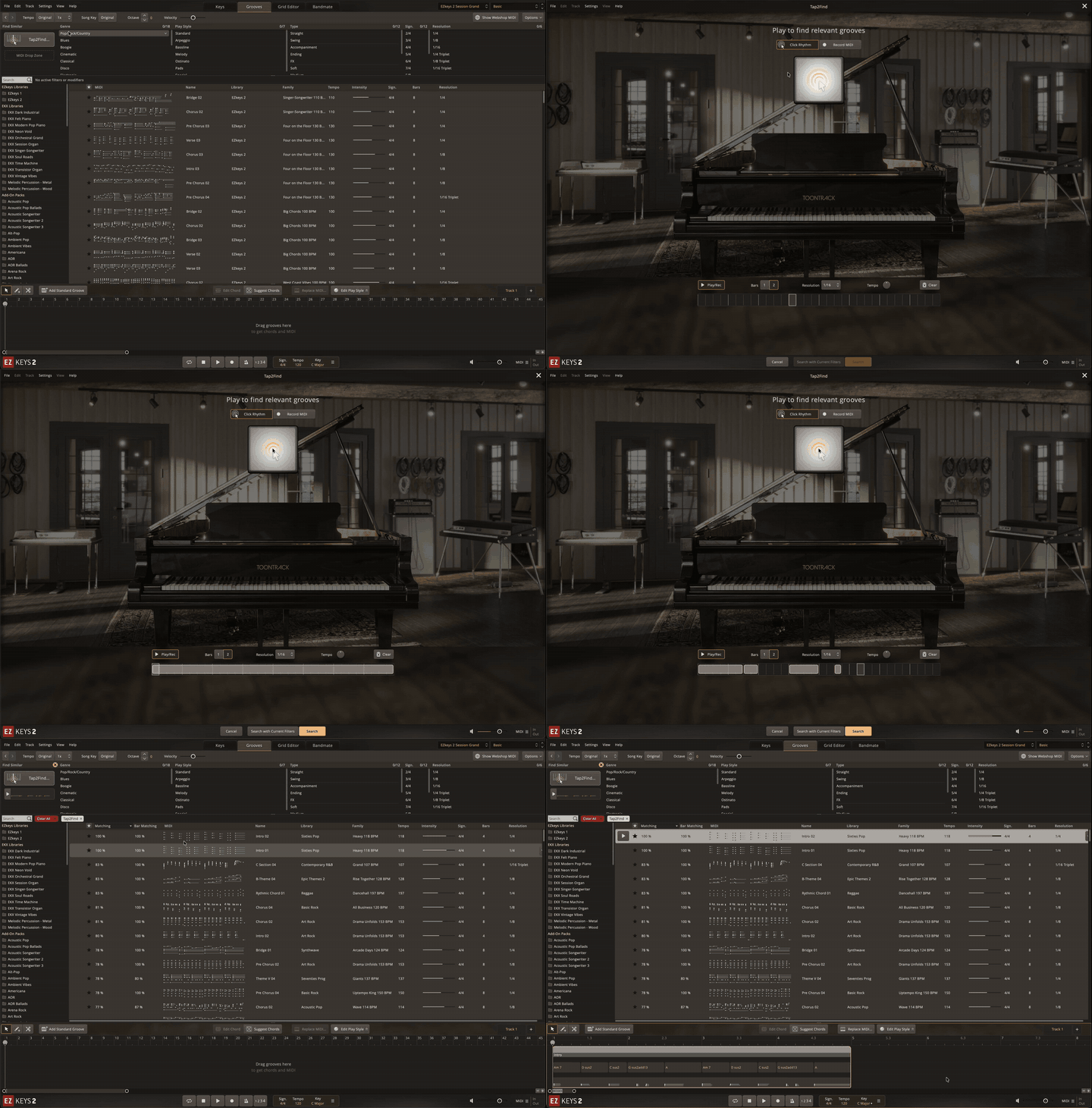
In addition to the methods shown in the video, you can also search through the EZkeys 2 MIDI library for inspiration. Most song ideas start as a rhythm or a short melody, and Tap2Find is there so you can search the groove library with that idea and find a professionally played part that matches. In Rhythm mode, you tap out the beat, and in Melody mode, you can play the riff or simple top line you’ve written on a MIDI keyboard. The results may not be an exact match for what you had in mind, and they don’t need to be, because a groove that is close gives you a real piano performance to build on and edit.
If the top results are close but not quite right, use the search filters to narrow down the style before you start editing.
Change the performance without editing every note
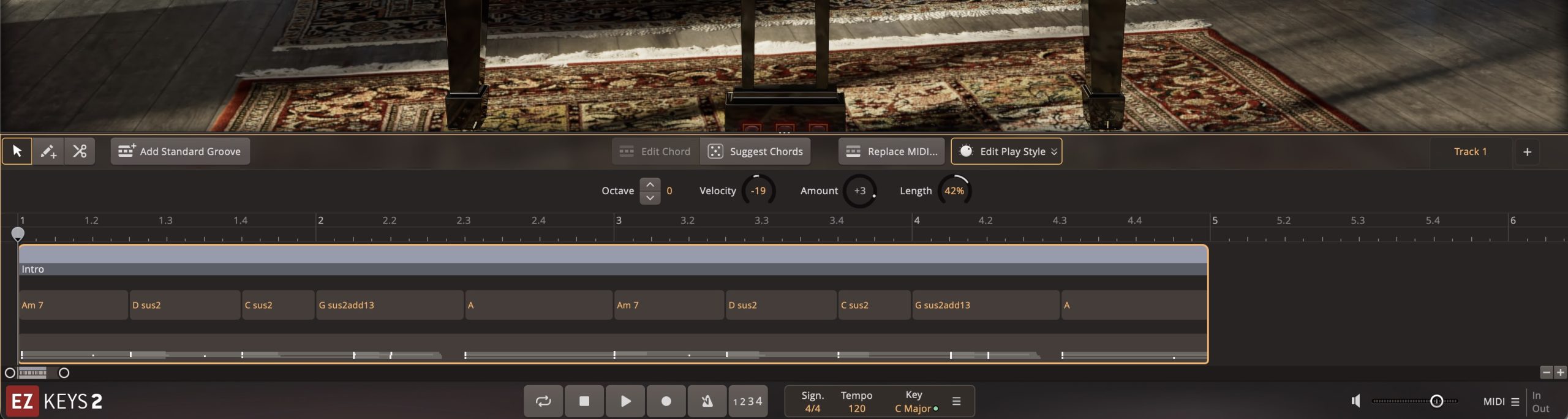
Once a part is on the Song Track, Edit Play Style lets you change the whole performance with a few broad moves, and you don’t have to touch individual notes to do it. It works a lot like a composer giving directions to a player. Octave moves the part up or down, Velocity changes how hard it is played, Length changes how long the notes are held and Amount adds or removes notes based on the rhythmic and tonal patterns of the part.
This is how someone who doesn’t play piano can still make the kind of decisions a piano player would make in a session. A groove that is too busy to work behind a vocal can be thinned out with Amount, and a part that clashes with a guitar in the same range can be moved up or down an octave.
When the arrangement is settled, the Grid Editor (the piano roll in EZkeys 2) is where you finish the details. Every note in a groove can be edited there, Humanize adjusts the timing, length and velocity of notes you add or change so programmed parts sound more like a real pianist, and Quantize can tighten the timing by as much or as little as you want. We recommend working in broad strokes on the Song Track first and leaving the Grid Editor for last (edits there change the notes permanently, so it makes sense to decide on the part before you fine-tune it).
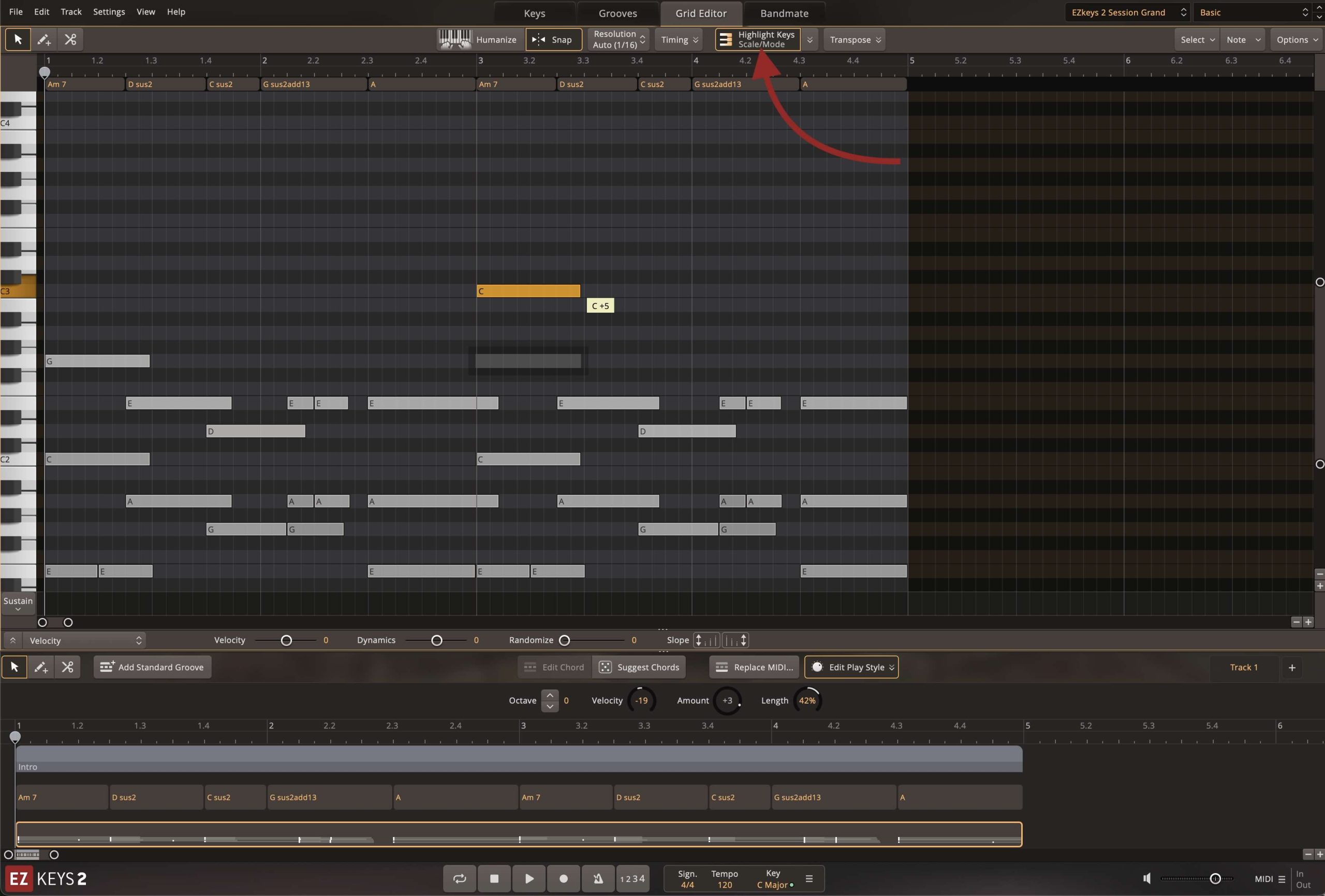
Stay in key with Highlight Keys and Scale Snap
The Grid Editor includes two settings that keep your edits in key. Highlight Keys marks the notes of the scale that matches your Song Key on the piano roll, and with Scale Snap turned on, you can move notes around within that scale and add new ones without landing on a note that doesn’t belong. That makes it easy to try a different melody line, change a fill or add a note to a chord and hear the result right away, without working out the theory first.
Scale Snap is most useful while you are sketching new notes, and you can turn it off when you want a passing tone or a borrowed chord tone outside the scale on purpose.
Change any chord with the Chord Wheel
The bridge in the video above started with Suggest Chords, which can put a full progression on the Song Track when you don’t yet know where a section is headed. A suggested progression is a starting point, and the Chord Wheel is where you embellish the chord. To open it, double-click any chord block on the Song Track or select the block and click the Edit Chord button.
The wheel is laid out in the circle of fifths, with major chords on the outer ring, their relative minor chords on the inner ring and the tonic at the top center. The highlighted section around the tonic shows the major and minor chords that belong to the key (in C major, that’s C, F, G, Am, Dm and Em), so even without much music theory you can see which chords will fit. Chords next to each other on the wheel are closely related, so the further you move from the highlighted section, the more the new chord will stand out from the key.
The menu to the right of the wheel changes the chord type with options such as Add9, Maj7, Dim, Sus4 and Aug, and you can open a longer list of extensions that includes 6, 7, 7#9, 9, 11 and 13. Bass sets the bass note, so you can write slash chords such as C/E, and Octave moves the chord up or down by an octave. Inversion is set to Auto by default, which picks the inversion that needs the least hand movement from the chord before it (this is how a pianist keeps the voicing from making large jumps between chords). Because of that, you can change a chord on the Chord Wheel without the piano part jumping to a different area of the keyboard. Essentially, using the Chord Wheel removes the painful part of MIDI editing. You may not even know what notes are present in a specific chord, but by clicking the options in the Chord Wheel, you can experiment with different colors and textures.
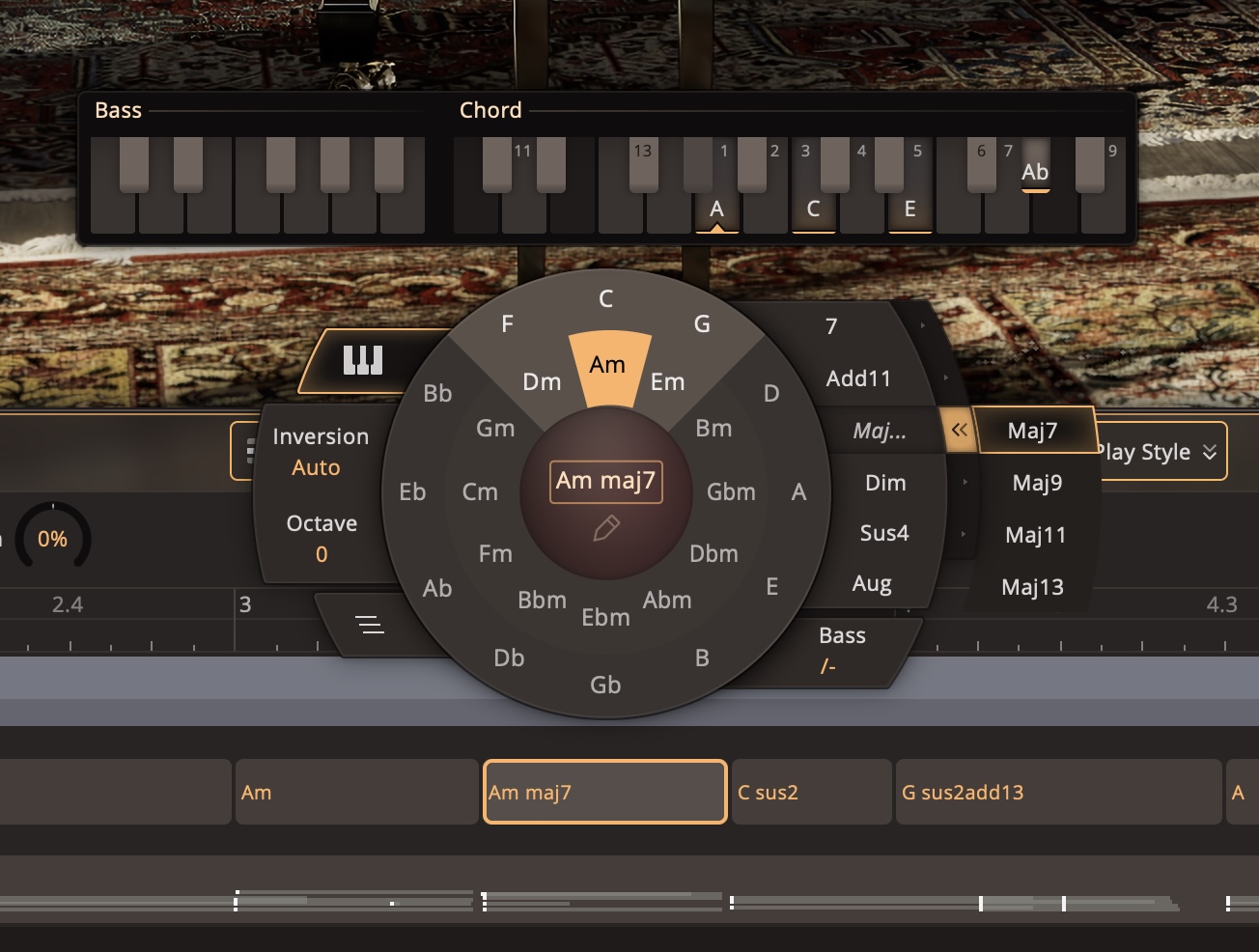
Use Suggest Chords to get the basic shape of a section, then open the Chord Wheel on any chords that you want to embellish.
Try it with your own ideas
The best way to find out whether EZkeys 2 fits the way you write is to bring in a riff or chord progression of your own and try the songwriting features on it.



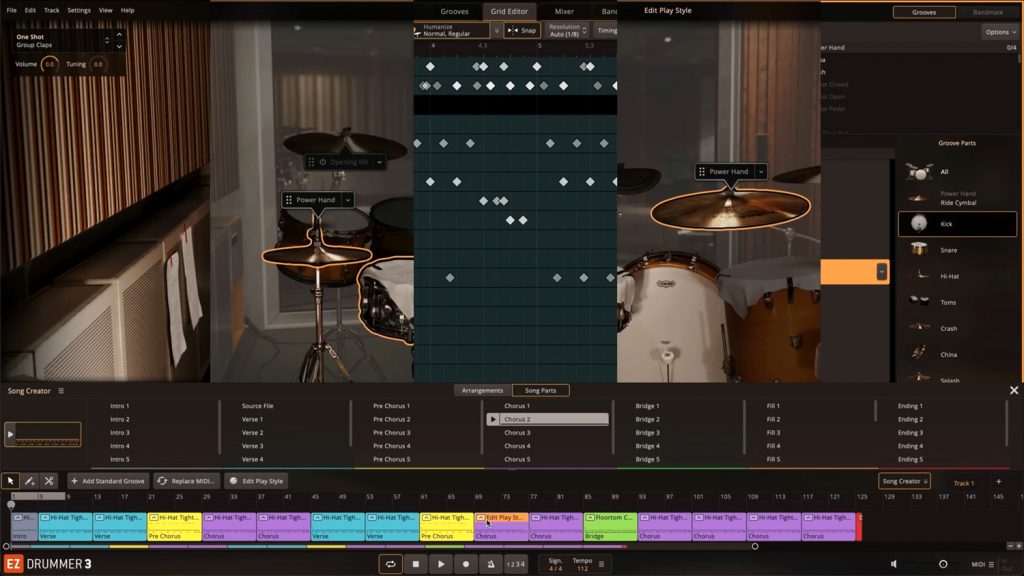


In this article, we dive into how EZkeys 2 can serve as a co-writer rather than just a piano plugin. We’ve highlighted five features that keep you moving forward and help you explore grooves, chords and performances so you can focus on writing and finishing more songs, faster.


